Building a Conversational AI Demo with Microsoft Copilot Studio: The Lanacloud Advisory Copilot
A same-day build — a Microsoft Copilot Studio agent grounded on our own website, published and embedded live on lanacloud.com, including the one authentication setting that silently blocks the public embed code.
Why This Project
Not every agentic AI demo needs custom backend code and function calling. Sometimes the goal is simpler and just as valuable to a prospective client: show that a conversational interface can be stood up quickly, grounded on real content, and dropped straight into a website — no infrastructure, no API keys, no servers to run.
That's this build. The Lanacloud Advisory Copilot is a Microsoft Copilot Studio agent that answers visitor questions about LanaCloud's services using Generative Answers grounded directly on lanacloud.com — no custom knowledge base, no manually written FAQ, just the site itself as the source of truth. It's published as a public, unauthenticated web chat and embedded on a dedicated demo page.
The architecture is intentionally shallow: browser → embedded iframe → Copilot Studio-hosted web chat → Generative Answers grounded on lanacloud.com.
The full stack: a public iframe on a dedicated /demo-copilot/ Django page → Copilot Studio's own hosted web chat endpoint → Generative Answers grounded on the lanacloud.com public website source.
How to Use This Guide
Same format as our Azure AI Foundry build log: what we configured, what broke, and the exact fix — including the one setting that quietly disables the feature you actually want.
Prerequisites
| Requirement | Notes |
|---|---|
| Microsoft Copilot Studio access | copilotstudio.microsoft.com, tied to a Microsoft 365 / Power Platform environment |
| A public website to ground the agent on | We used lanacloud.com itself — no PDF or custom knowledge base needed |
| An existing site to embed into | We used Django, but the embed is a plain <iframe> — framework-agnostic |
Build sequence
| Step | What we built | Hard dependency |
|---|---|---|
| 1 | Agent created in Copilot Studio | Environment access |
| 2 | Knowledge source (Generative Answers) added | Agent created |
| 3 | System instructions written | Agent created |
| 4 | Agent published | Instructions + knowledge in place |
| 5 | Authentication switched to public | Published agent showing "channel turned off" |
| 6 | Embed code retrieved + Django page built | Public authentication confirmed |
Part 1 — Creating the Agent
In copilotstudio.microsoft.com, under Agents, we created a new agent named Lanacloud Advisory Copilot. The modern Copilot Studio experience ("Agentic Automations") organizes an agent into tabs: Overview, Knowledge, Tools, and a Channels tab reached via a "+N more" overflow menu — alongside Topics, Activity, Evaluation, and Monitor.
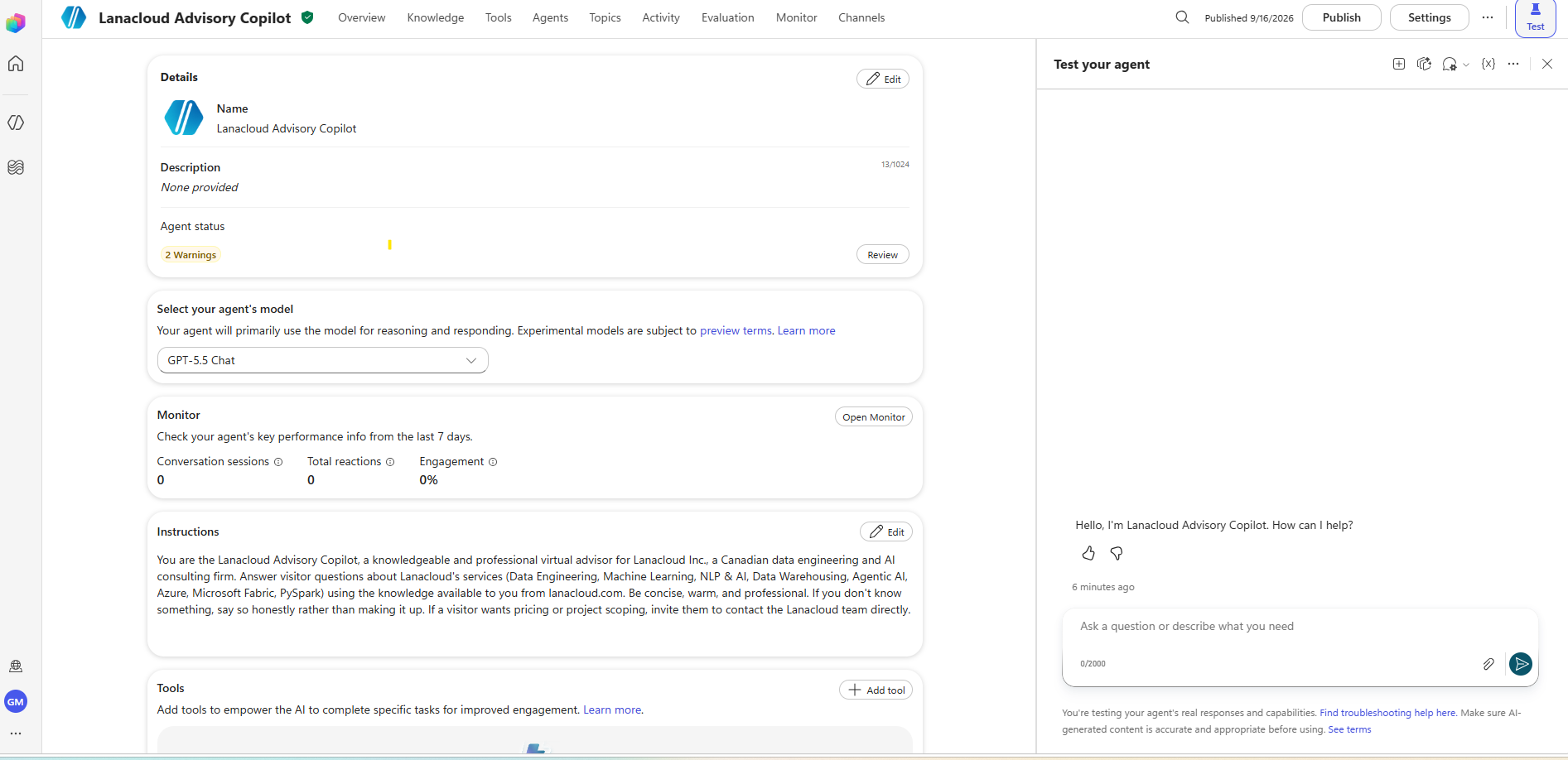
A fresh agent ships with three default topics (Greeting, Goodbye, Start Over) and a chosen reasoning model — GPT-5.5 Chat in this case.
No custom Topics were built for this version — per the project scope, this is the Generative-Answers-only version of the demo, which trades a scripted question flow for a model that answers freely from grounded content.
Part 2 — Adding the Knowledge Source
Under the Knowledge tab, Add knowledge → Public websites, we entered https://lanacloud.com and confirmed. Copilot Studio crawls and indexes the site as a Public website knowledge source; it showed status Ready within seconds.
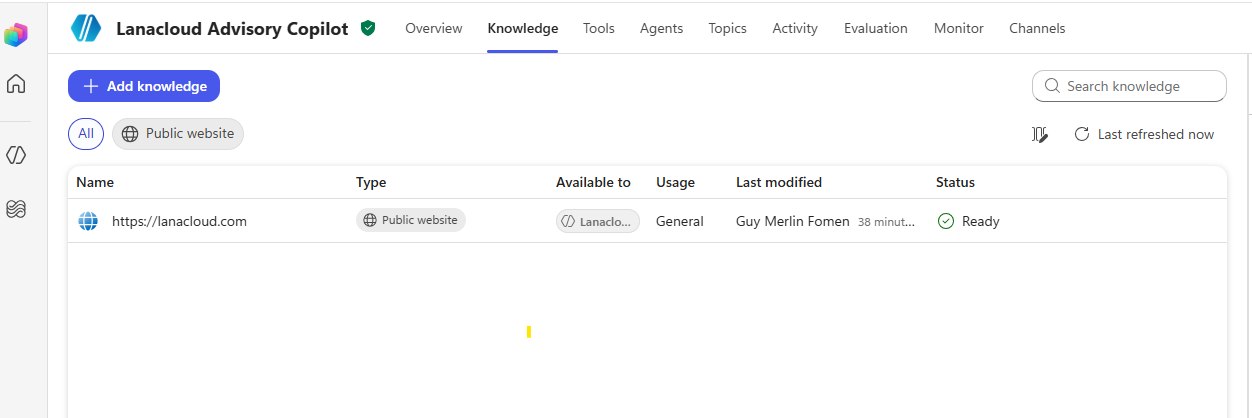
One knowledge source, one URL — no document upload, no manual FAQ authoring.
This is the entire "knowledge base" for the agent. Every answer it gives is grounded in whatever is actually published on the live site.
Part 3 — Writing the System Instructions
You are the Lanacloud Advisory Copilot, a knowledgeable and professional virtual
advisor for Lanacloud Inc., a Canadian data engineering and AI consulting firm.
Answer visitor questions about Lanacloud's services (Data Engineering, Machine
Learning, NLP & AI, Data Warehousing, Agentic AI, Azure, Microsoft Fabric,
PySpark) using the knowledge available to you from lanacloud.com. Be concise,
warm, and professional. If you don't know something, say so honestly rather
than making it up. If a visitor wants pricing or project scoping, invite them
to contact the Lanacloud team directly.
Nothing exotic here — a persona, a scope, and an explicit instruction not to fabricate answers outside the grounded knowledge. The Instructions field is read-only until you click Edit, at which point it becomes an editable rich-text box with an 8,000-character limit.
Part 4 — Publishing, and the Authentication Gotcha
Clicking Publish kicks off a background job — a "Your agent is being published" progress dialog appears, and you're free to navigate away while it finishes. A few minutes later, the agent's status read Published by ... at 9:14 PM.
With the agent published, we went to Channels → Web app expecting a simple copy-paste iframe snippet. Instead:
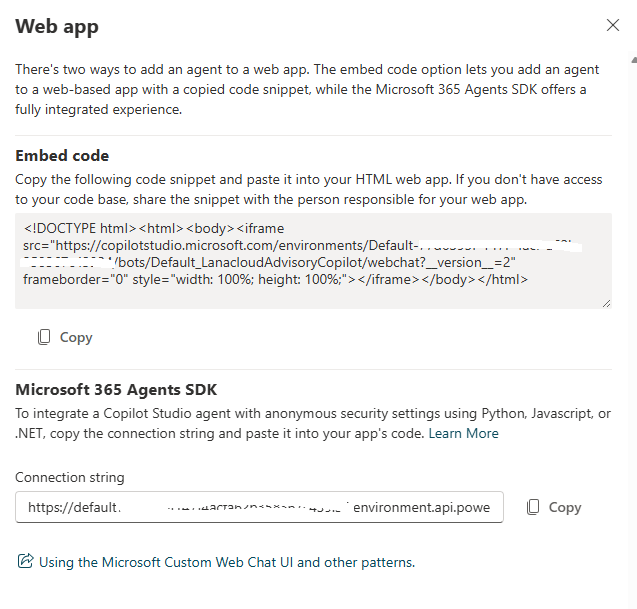
Only the Microsoft 365 Agents SDK connection-string option appeared — no plain embed code, and no backend to broker it yet.
Checking the Demo website channel explained why:
"This channel is turned off because of authentication settings. To change, go to Settings > Security > Authentication > Choose an option."
By default, a new agent's authentication is set to Authenticate with Microsoft (Entra ID) — meant for Teams, SharePoint, and Microsoft 365 Copilot contexts. That setting silently disables both the Demo Website channel and the plain public <iframe> embed option, leaving only the authenticated SDK integration (which requires a backend to broker tokens — the same category of complexity as the Azure AI Foundry agent from Part 2).
The fix: Settings → Security → Authentication → select No authentication, save, and re-publish.
Selecting No authentication means that anyone with access to the agent will be
able to use it without having to sign in.
That confirmation dialog is the tell — this is exactly the trade-off we want for a public marketing-site demo. After re-publishing, the Web app channel dialog changed completely, now showing both a plain Embed code iframe snippet and the Microsoft 365 Agents SDK option:
<!DOCTYPE html>
<html>
<body>
  <iframe
    src="https://copilotstudio.microsoft.com/environments/Default-77d6395f-147f-4acf-a62b-358367c43934/bots/Default_LanacloudAdvisoryCopilot/webchat?__version__=2"
    frameborder="0"
    style="width: 100%; height: 100%;">
  </iframe>
</body>
</html>
One detail worth noting: the URL uses the agent's schema name (Default_LanacloudAdvisoryCopilot) — spaces stripped, environment-prefixed — not its display name (Lanacloud Advisory Copilot). If you're constructing this URL by hand rather than copying it, that's the part that will 404.
Part 5 — Embedding It on the Website
With a plain iframe in hand, the Django side is close to trivial — no backend code, no API keys, no session state:
COPILOT_STUDIO_EMBED_URL = (
    "https://copilotstudio.microsoft.com/environments/Default-77d6395f-147f-4acf-a62b-358367c43934/"
    "bots/Default_LanacloudAdvisoryCopilot/webchat?__version__=2"
)


def copilot_studio_demo(request):
    """Live demo page embedding the Lanacloud Advisory Copilot (Microsoft Copilot Studio)."""
    nav_context = get_navigation_context(request)
    context = {**nav_context, 'embed_url': COPILOT_STUDIO_EMBED_URL}
    return render(request, 'website/copilot_studio_demo.html', context)
<div class="copilot-frame-wrap">
  <iframe src="{{ embed_url }}" title="Lanacloud Advisory Copilot"></iframe>
</div>
The one polish bug worth mentioning: the first version of this template didn't reuse the site's shared .main-content / .page-header classes, which reserve top padding for the fixed navigation bar. The result was a page title rendering underneath the nav instead of below it — invisible on load. The fix was simply wrapping the page in the same layout classes every other page on the site already uses, rather than inventing new ones.
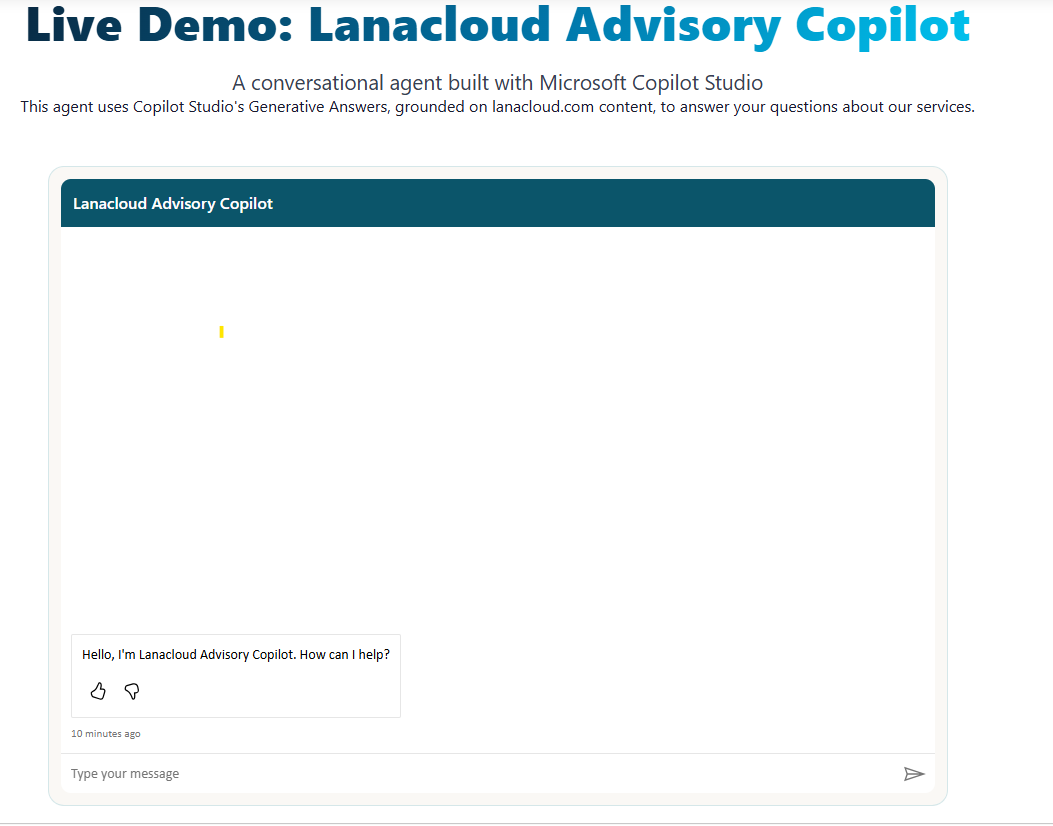
The finished demo at lanacloud.com/demo-copilot/ — a fully embedded, publicly accessible Copilot Studio agent.
What This Build Demonstrates
| Capability | What Was Demonstrated |
|---|---|
| Agent configuration | Agent creation, model selection, and system instructions in Copilot Studio |
| Generative Answers | Grounding an agent directly on a live public website with zero manual knowledge authoring |
| Publishing workflow | Background publish job, status polling, and re-publish after a settings change |
| Authentication trade-offs | Diagnosing why a channel is unavailable and choosing the right auth mode for a public demo |
| Zero-backend embedding | A production page shipped with no server-side integration code — just a public iframe |
The contrast with Part 2's Azure AI Foundry build is the real takeaway: two agent platforms, two very different complexity profiles. Function/tool calling against a real backend justifies the SDK, the service principal, and the RBAC role. A grounded conversational FAQ over your own website doesn't — and Copilot Studio's public embed path gets you there in an afternoon, provided you know which authentication setting is quietly standing in the way.